Public WiFi has become a normal part of everyday life. I often see people connecting their phones and laptops to free WiFi at coffee shops, airports, hotels, restaurants, libraries, shopping malls, and other public places. It is convenient because it saves mobile data and usually gives us a faster internet connection. However, I believe we should never treat public WiFi as completely safe.
The biggest problem with public WiFi is that we usually do not know who manages the network or who else is connected to it. Some networks are properly secured, while others may have weak security or even be created by someone with bad intentions. This does not mean that you should stop using public WiFi completely. In my experience, the better approach is to understand the risks and follow a few simple security habits.
In this article, I will share practical ways to stay safe when using public WiFi. These are simple steps that anyone can follow, even without advanced technical knowledge.
Understand the Risks of Public WiFi
Before discussing safety tips, I think it is important to understand why public WiFi can be risky.
When you connect to an unknown network, you are trusting that network to provide a safe connection. A poorly protected network can potentially expose information about your online activity. Attackers may also create fake WiFi networks with names that look similar to legitimate networks.
For example, imagine you are sitting in a coffee shop and see two networks with almost identical names. One might belong to the coffee shop, while another could be a fake network created nearby. If you connect to the wrong one, your information could potentially be exposed.
Modern websites and apps use encryption to protect much of the information you send, which is a major improvement over the past. Still, I prefer to treat unfamiliar WiFi networks carefully rather than assuming they are completely secure.
Confirm the WiFi Network Name
One of the easiest things you can do is verify the network before connecting.
If you are at a hotel, airport, restaurant, or coffee shop, ask an employee for the official WiFi name. Do not simply connect to the first network that looks familiar.
Sometimes attackers create networks with names such as “Free Airport WiFi” or a name that closely resembles the real network. These fake networks are designed to trick people into connecting.
I always recommend checking the spelling carefully. If the official network is called “Coffee House Guest,” but you find “Coffee House Free” and nobody has confirmed that it is legitimate, I would avoid it.
Taking a few seconds to verify the network can prevent unnecessary problems.
Avoid Sensitive Activities on Public WiFi
One of my most important rules is to avoid performing highly sensitive activities on unfamiliar public WiFi whenever possible.
For example, I would avoid accessing important financial accounts, making sensitive transactions, or entering confidential information when I am connected to an unknown network.
This does not mean every public WiFi network is dangerous. It simply means that there is little reason to take unnecessary risks when you can wait until you are on a trusted network or use mobile data.
If something is extremely important, I prefer using my phone’s mobile data instead of an unfamiliar public connection.
Use a VPN When Appropriate
A VPN can provide an additional layer of privacy by creating an encrypted connection between your device and a VPN server.
If I regularly travel or use public networks, I consider a reputable VPN an important privacy tool. It can be especially useful when connecting through networks that I do not control.
However, I would not recommend choosing a VPN randomly just because it is advertised as free. A VPN provider can potentially handle a significant amount of information about your internet connection, so choosing a trustworthy service matters.
Before using a VPN, check its privacy policy, reputation, security practices, and pricing. A reputable paid service can sometimes be a better choice than an unknown free service.
A VPN is not a magic security solution, though. You should still use strong passwords, updated software, secure websites, and other basic security practices.
Make Sure HTTPS Is Being Used
When visiting websites, I pay attention to whether the connection is protected by HTTPS.
Most modern browsers indicate a secure website connection with a lock icon or similar security indicator. HTTPS helps encrypt information exchanged between your browser and the website.
This is especially important when entering passwords or personal information.
However, I would not assume that HTTPS automatically makes every website trustworthy. A malicious website can also use HTTPS. The encryption protects the connection, but it does not guarantee that the website itself is legitimate.
Always check the website address carefully before entering sensitive information.
Turn Off Automatic WiFi Connection
Another simple security habit is disabling automatic connection to WiFi networks.
Some phones and computers can automatically connect to networks they recognize. While this feature can be convenient, I prefer having more control over which networks my device joins.
If automatic connection is enabled, your device may attempt to connect to a network without you actively checking it.
You can review your WiFi settings and disable automatic connections to unfamiliar or unnecessary networks. You can also forget old public networks that you no longer use.
This small change can give you better control over your internet connections.
Keep Your Phone and Computer Updated
Software updates are not only about adding new features. They often include security fixes for vulnerabilities discovered by developers and security researchers.
I make it a habit to install operating system and browser updates when they become available.
The same applies to apps. If an app has an available security update, installing it can reduce the chance of attackers taking advantage of an old vulnerability.
If you frequently use public WiFi, keeping your device updated becomes even more important.
Make sure your phone, tablet, laptop, browser, and security software are reasonably up to date.
Use Strong and Unique Passwords
Public WiFi security is only one part of protecting your online accounts.
I strongly recommend using strong and unique passwords for important accounts. If you use the same password everywhere, one compromised account can create problems for your other accounts.
A password manager can make this much easier because you do not have to remember dozens of complicated passwords.
For example, your email account should have a different password from your social media accounts, shopping accounts, and other services.
A strong password combined with two factor authentication can provide much better protection than relying on a simple password alone.
Enable Two Factor Authentication
Two factor authentication adds another security step when you log in to an account.
Even if someone somehow obtains your password, they may still need the second authentication method to access your account.
I recommend enabling two factor authentication for important accounts such as email, cloud storage, social media, and financial services where available.
Authenticator apps and security keys can provide strong protection, while other verification methods may also be available depending on the service.
This is one of those security features that takes only a few minutes to set up but can make a meaningful difference.
Turn Off File Sharing
When I am connected to a public network, I do not want other devices on that network to have unnecessary access to my computer.
For this reason, it is a good idea to review file sharing and network discovery settings.
On laptops, especially, make sure the network is identified as public rather than private when appropriate. Public network settings generally provide more restrictive sharing behavior.
If you do not need file sharing, printer sharing, or network discovery while traveling, turning them off can reduce your exposure.
Avoid Unknown Downloads
I also recommend being careful about downloading files while using public WiFi.
If a website suddenly asks you to install unfamiliar software, browser extensions, security tools, or updates, stop and think before accepting.
Some malicious websites use fake warnings to convince users that their device has a virus or needs an urgent update.
Whenever possible, download software directly from the official website or trusted app store.
Do not install programs simply because a pop up tells you to do so.
Forget Public WiFi After Using It
After leaving a location, I like to remove networks that I no longer need.
For example, if I connect to WiFi at a hotel during a trip, there is usually no reason for my phone or laptop to remember that network permanently.
Forgetting old networks can prevent your device from automatically trying to connect to them later.
This is a simple habit, but it gives you more control over your device’s network behavior.
Use Mobile Data for Important Tasks
Sometimes the safest solution is also the simplest one.
If you need to access an important account or perform a sensitive task, using your mobile data can be preferable to connecting to an unknown public WiFi network.
Modern mobile networks use security mechanisms that make them different from an open public WiFi environment.
If your mobile data plan allows it, I would rather use mobile data for a sensitive transaction than spend time worrying about an unfamiliar network.
You can also use your phone as a personal hotspot when you need internet access on a laptop.
Be Careful With Pop Ups and Security Warnings
Public WiFi users may sometimes encounter strange pop ups or unexpected login pages.
If a page suddenly tells you that your device is infected, your browser is outdated, or you have won a prize, do not immediately follow its instructions.
Close the page and open the service you actually intended to use through its official website or application.
I have found that slowing down for a few seconds can prevent many security mistakes. Attackers often rely on people reacting quickly without checking what they are clicking.
Check Your Accounts Regularly
Even with good security habits, it is useful to monitor your important accounts.
Many online services allow you to see recent login activity or devices that have accessed your account.
If you notice something unusual, change your password and review the account’s security settings.
For important accounts, I also recommend keeping recovery information updated. This can make it easier to regain control if something goes wrong.
Final Thoughts
Public WiFi is not something we necessarily need to fear. I use public internet connections when they are convenient, but I try not to use them carelessly.
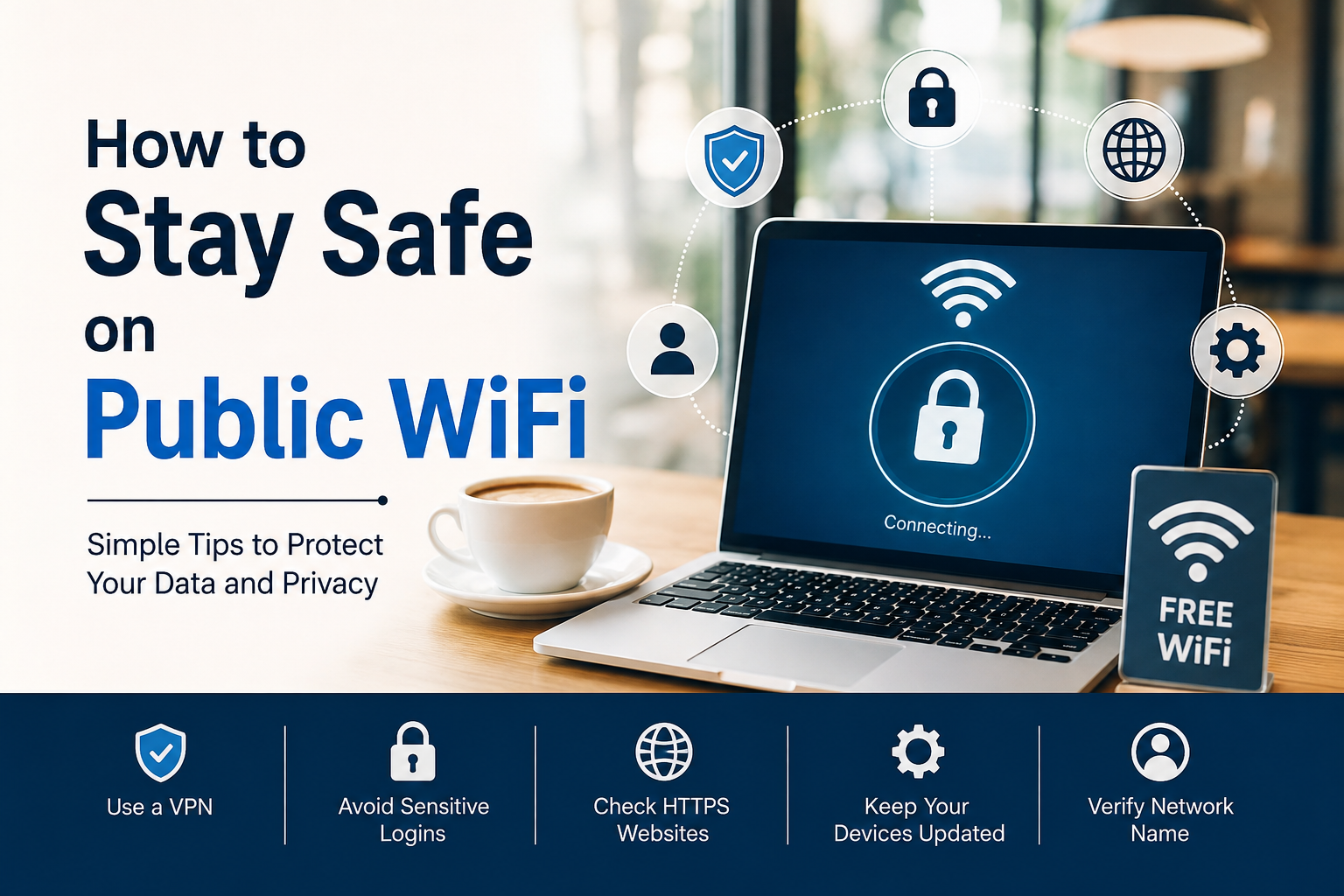
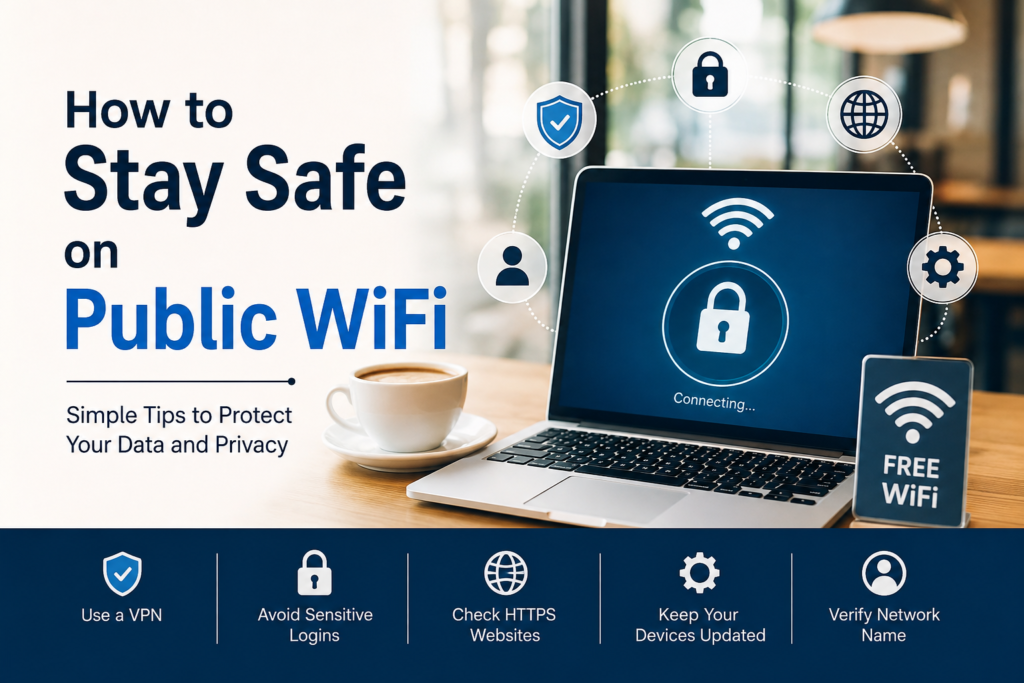
The most important thing is to develop good habits. Verify the network name before connecting, avoid sensitive activities when possible, use HTTPS websites, keep your devices updated, use strong unique passwords, enable two factor authentication, and consider a reputable VPN when appropriate.
I also believe that common sense plays a major role in online safety. If a WiFi network looks suspicious, a website behaves strangely, or a download request seems unusual, it is better to stop and investigate instead of continuing.
Public WiFi can be useful when traveling, studying, working, or simply saving mobile data. With a few basic precautions, you can enjoy that convenience while reducing unnecessary security and privacy risks. The goal is not to become a cybersecurity expert. The goal is simply to make safer decisions every time you connect.