Running out of storage space on a Windows computer can be frustrating. I have faced this problem several times, especially when my computer started showing low disk space warnings. At first, I thought I needed to buy a bigger hard drive, but later I learned that a lot of space was being used by unnecessary files, old downloads, temporary data, and applications I no longer needed.
The good thing is that freeing up space on Windows is not very difficult. With a few simple steps, you can remove unwanted files and make more storage available. In this article, I will share the methods I personally find useful for freeing up space on a Windows computer.
Check What Is Using Your Storage
Before deleting anything, I believe it is better to understand what is actually taking up space. Windows provides a simple way to check your storage usage.
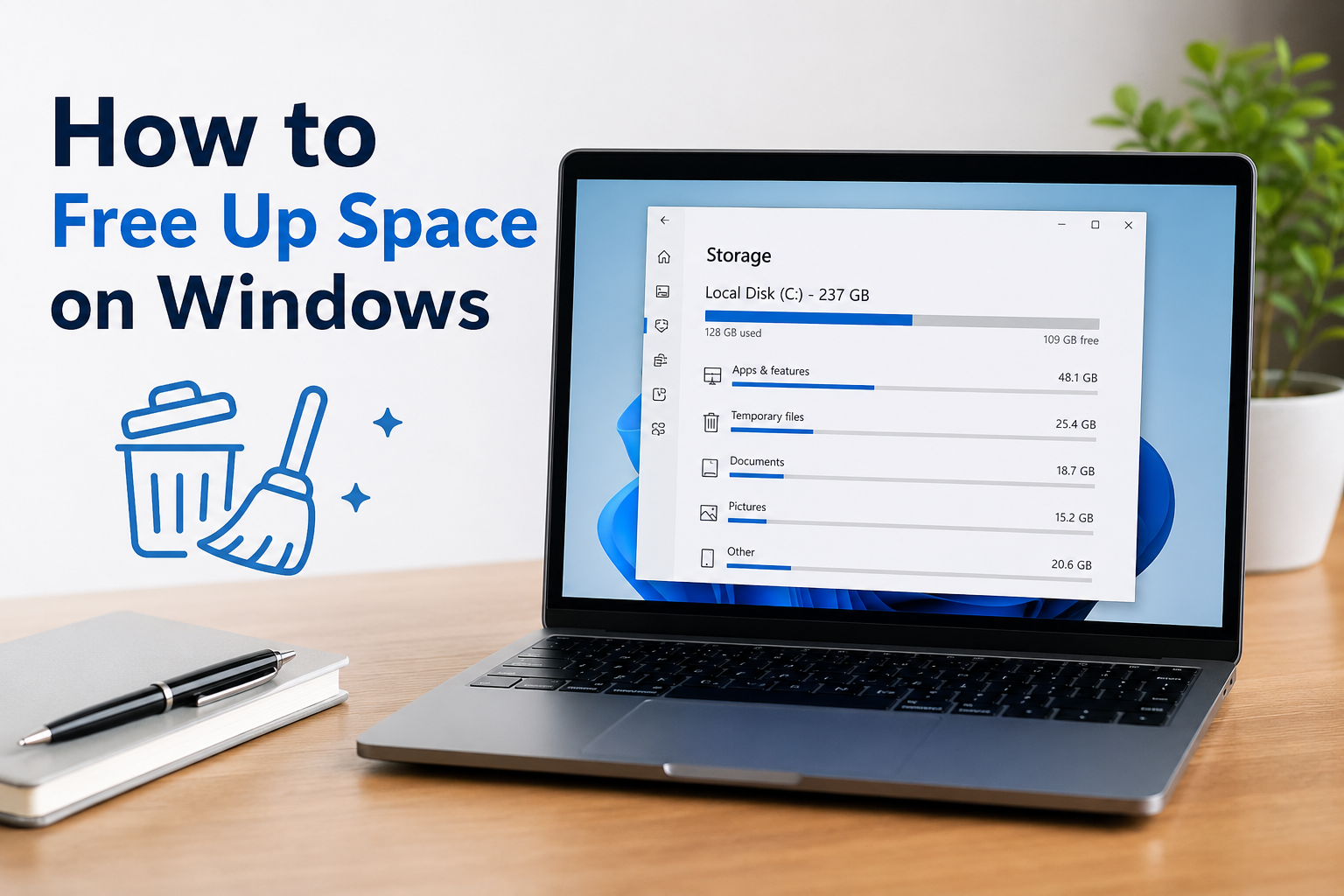
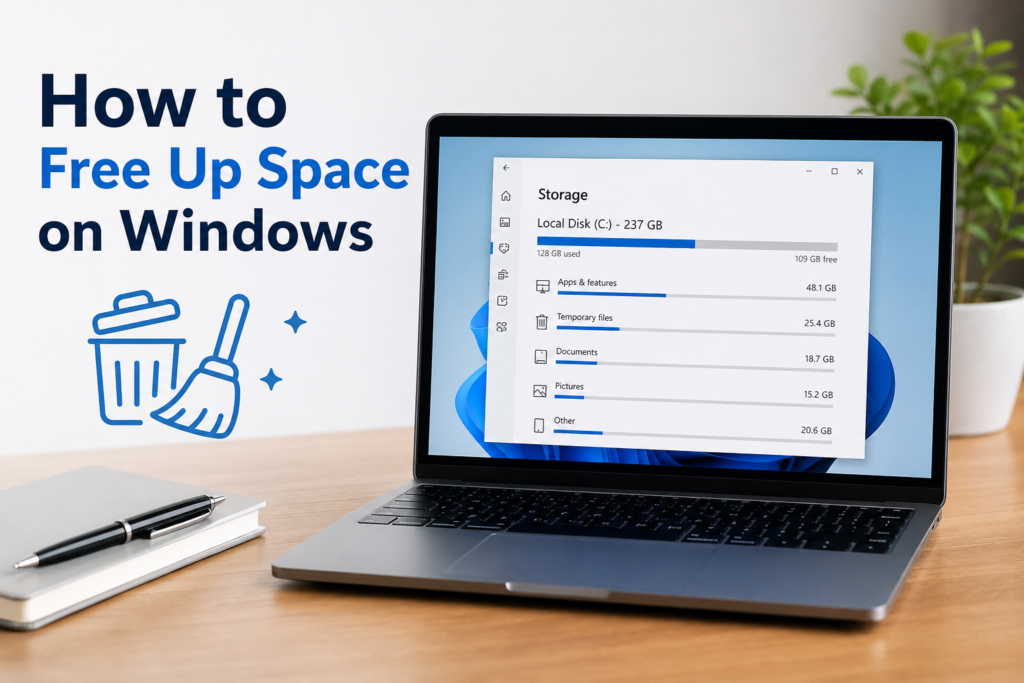
On Windows 11 and Windows 10, open Settings and go to System. Then select Storage. You will see a breakdown of your storage usage. Windows usually shows categories such as Apps, Temporary Files, Documents, Pictures, Videos, and other files.
I always recommend checking this section first because it helps you understand where your storage is going. For example, if videos are using a large amount of space, you can review your video files. If applications are taking too much space, you can uninstall programs that you no longer use.
Delete Temporary Files
Temporary files are another common reason why storage space becomes full. Windows and different applications create temporary files while performing various tasks. Many of these files are no longer needed after the task is completed.
To remove temporary files, open Settings and go to System, then Storage. Select Temporary Files. Windows will show different types of files that can potentially be removed.
You may see temporary files, thumbnails, delivery optimization files, recycle bin contents, and other categories. I usually review the list carefully before deleting anything.
One important thing I learned is that you should not blindly select every option. Some categories may contain files you still want to keep. Read the descriptions and select only the items you are comfortable removing.
Clean the Recycle Bin
When you delete a file in Windows, it usually does not disappear immediately. Instead, it goes to the Recycle Bin. This is useful because you can restore accidentally deleted files.
However, the Recycle Bin can become surprisingly large over time. Old videos, pictures, documents, and other files may continue taking up storage.
If you are completely sure that you do not need the files inside it, empty the Recycle Bin. Simply right click the Recycle Bin icon and select the option to empty it.
I recommend checking the contents before doing this because permanently deleted files may not be easy to recover.
Remove Unused Applications
Applications and games can take up a huge amount of storage. Sometimes I install a program for a particular task and then forget about it. After several months, I may have several applications that I rarely or never use.
You can check installed applications by opening Settings and selecting Apps. From there, open the installed apps section. You can review the applications and their sizes.
If you find a program that you no longer need, uninstall it. Removing unused applications can free a significant amount of space, especially if you have large games or editing software installed.
I think this is one of the easiest ways to clean up a computer because it also makes your list of installed applications more organized.
Clean Your Downloads Folder
The Downloads folder is one of the places I always check when I need more storage. It is very easy to download a file and completely forget about it.
Over time, the folder can contain setup files, documents, pictures, videos, compressed files, and duplicate downloads.
Open File Explorer and go to your Downloads folder. Sort the files by size so you can quickly find the largest items.
Before deleting anything, make sure you do not need it. Some files may be important, so it is better to review them rather than deleting everything at once.
If you have important files that you want to keep but do not need every day, you can move them to another storage device or cloud storage.
Remove Large Personal Files
Large personal files can consume a lot of storage without you realizing it. Videos are usually among the biggest files, but high resolution pictures, software installers, and project files can also take up considerable space.
I usually search my computer for large files when I notice that my storage is getting low. File Explorer allows you to search and organize files based on their size.
Look through your Documents, Pictures, Videos, Desktop, and Downloads folders. If you find files that you no longer need, delete them or move them somewhere else.
This approach is useful because it allows you to decide exactly which files should stay and which ones can be removed.
Use Windows Storage Sense
Windows includes a useful feature called Storage Sense. It can automatically remove certain unnecessary files and help maintain free storage.
You can find Storage Sense by going to Settings, System, and Storage. From there, you can enable the feature and configure how it works.
Storage Sense can help remove temporary files and manage items such as the Recycle Bin. Depending on your settings, it can also help manage files that have not been used recently.
I like this feature because it reduces the need to manually clean temporary data all the time. However, I still recommend reviewing its settings so you understand what Windows is allowed to remove.
Delete Old Windows Update Files
Windows updates are important for security and performance, but update related files can sometimes use a noticeable amount of storage.
Windows may keep certain files from previous updates so that the system can recover if something goes wrong. After you are confident that your computer is working properly after an update, Windows may allow some older update files to be removed through its storage cleanup options.
You can find these options under Temporary Files in Windows Storage settings.
I would suggest being careful with system files. If you are unsure about a category, research what it contains before deleting it.
Use Disk Cleanup
Disk Cleanup is another built in Windows utility that can help remove unnecessary files. Although newer Windows versions provide more storage management features, Disk Cleanup can still be useful on many systems.
To open it, search for Disk Cleanup from the Windows search box. Select your main drive, usually the C drive, and let Windows calculate how much space can be recovered.
You will see different categories of files. Review the available options and select the ones you want to remove.
This tool is particularly useful when your computer has accumulated temporary system files over a long period.
Move Large Files to External Storage
Sometimes deleting files is not the best solution because you may actually want to keep them. In this situation, moving files to another storage location can be a better choice.
For example, if you have a large collection of family videos, school projects, photographs, or other important files, you can move them to an external hard drive or USB storage device with enough capacity.
Cloud storage can also be useful for files that you do not need to access constantly.
Personally, I think keeping important files organized in separate locations is better than allowing everything to remain on the main Windows drive.
Remove Duplicate Files
Duplicate files are another storage problem that is easy to overlook. You may have the same picture, document, or video saved in several different folders.
Instead of manually checking every folder, you can use Windows search and sort files by name, size, or date to identify duplicates. Be careful when deleting them because two files with similar names may not always be identical.
I prefer to confirm the file contents before removing anything important.
Clean Your Desktop
Many people use the desktop as a temporary storage area. I used to do this myself, and eventually my desktop became filled with files and folders.
Although desktop files are still part of your computer storage, keeping too many files there can make things difficult to manage.
I recommend moving documents, pictures, installers, and other files into properly named folders. This makes it easier to find files later and keeps your workspace organized.
Empty Browser Cache When Necessary
Web browsers store cached data to make websites load faster. Normally, this is useful, but cached files can grow over time.
If your browser cache has become unusually large, clearing it can recover some storage. You can find cache and browsing data settings inside browsers such as Microsoft Edge and Google Chrome.
However, I would not clear browser data constantly just to gain a small amount of storage. I prefer doing it when there is a specific reason, such as storage problems or browser troubleshooting.
Compress Files You Rarely Use
If you have files that you want to keep but rarely access, compressing them can sometimes reduce the amount of storage they require.
Windows supports common compressed file formats through File Explorer. You can select files or folders and create a compressed archive.
This method is more useful for collections of documents and other files that compress well. Videos and already compressed images may not become much smaller.
Do Not Delete Important System Files
While cleaning Windows, it is important to remember that not every file should be deleted. Some system files are necessary for Windows to operate correctly.
I recommend using built in Windows storage tools whenever possible. Avoid manually deleting unfamiliar files from important system folders.
If you are unsure about a file, it is better to leave it alone until you understand what it does.
Keep Your Storage Clean Regularly
Freeing up space once is helpful, but keeping your computer organized is even better. I try to check my storage occasionally instead of waiting until Windows shows a low storage warning.
Every few weeks or months, review your Downloads folder, uninstall unused applications, remove unnecessary temporary files, and organize large personal files.
This simple habit can prevent storage problems from becoming serious.
Final Thoughts
Freeing up space on Windows does not always require buying a new drive. In many cases, a computer has plenty of unnecessary files that can safely be removed or moved elsewhere.
From my experience, the best approach is to start by checking Windows Storage settings. Then review temporary files, unused applications, downloads, large personal files, and the Recycle Bin. Features such as Storage Sense and Disk Cleanup can make the process easier.
The most important thing is to clean your computer carefully. Do not delete files just because they look unfamiliar. Always check important documents, pictures, videos, and other personal data before removing them.
With a little regular maintenance, you can keep your Windows computer organized and maintain a healthy amount of free storage. I find that even a simple cleanup can make managing a computer much easier and give me more room for the files and applications I actually use.