When I use a laptop for a long time, one of the first things I like to check is how much RAM and storage it has. These two parts have a big effect on how smoothly a laptop works. If the laptop feels slow, programs take too long to open, or there is not enough space for files, checking RAM and storage can help me understand the reason.
The good thing is that I do not need to open my laptop or install complicated software just to check these details. Windows provides several simple ways to see RAM and storage information. In this article, I will explain the methods I personally find easy and useful for checking laptop RAM and storage.
What Is RAM in a Laptop?
RAM stands for Random Access Memory. I think of RAM as the temporary working space of a laptop. When I open a browser, start a program, edit a document, or play a game, the laptop uses RAM to handle these active tasks.
RAM is different from storage. RAM works temporarily while the laptop is running, while storage keeps files and programs even after the laptop is turned off.
For example, if my laptop has 8 GB of RAM, it can use that memory to handle different tasks. Having more RAM can be helpful when I use several programs at the same time.
What Is Laptop Storage?
Laptop storage is where my files, applications, Windows system files, photos, videos, and other data are saved. Modern laptops usually use an SSD, although some older laptops may have an HDD.
Storage is normally measured in GB or TB. A laptop might have 256 GB, 512 GB, 1 TB, or more storage.
One thing I always keep in mind is that the advertised storage capacity and the available storage shown in Windows may not be exactly the same. Some space is already used by Windows, system files, recovery files, and other data.
How to Check RAM in Windows
The easiest method I use to check RAM is through Windows Settings.
First, I open the Start menu and select Settings. Then I go to System and choose About. On this page, Windows displays information about the laptop.
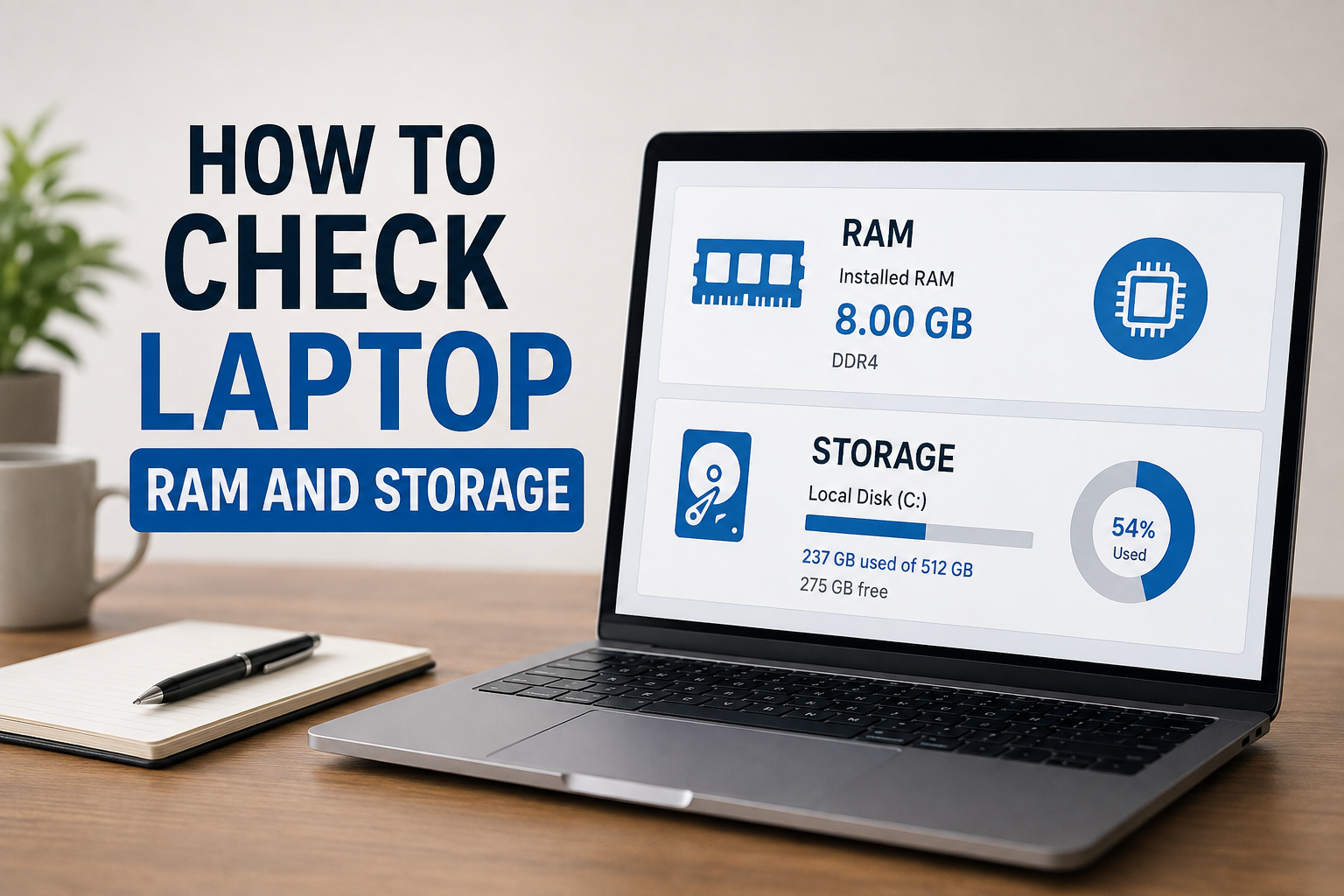
I look for the section called Installed RAM. It shows the amount of RAM installed in the laptop.
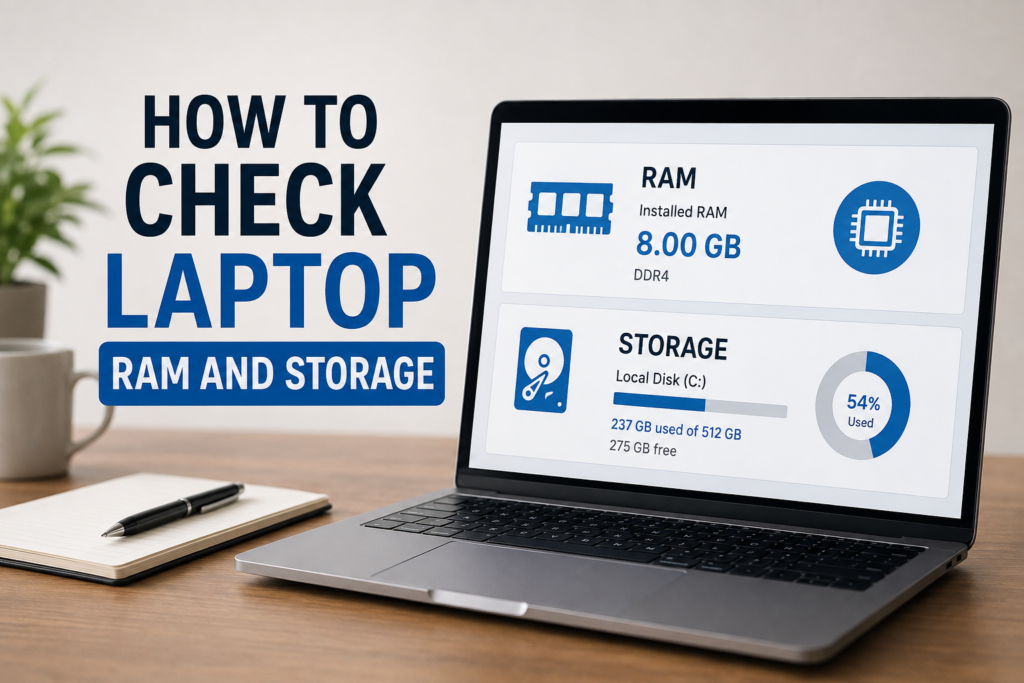
For example, if I see 8.00 GB installed RAM, that means my laptop has 8 GB of RAM.
This method is useful when I only want basic information. It is quick, simple, and does not require any additional software.
Check RAM Through Task Manager
Another method I find useful is Task Manager because it gives me more information about how my RAM is being used.
To open Task Manager, I can right click the Start button and select Task Manager. I can also press Ctrl, Shift, and Esc together.
After Task Manager opens, I select the Performance section. Then I click Memory.
Here I can see the total RAM, current memory usage, available memory, speed, and other useful details.
I personally like this method when my laptop feels slow because it helps me understand whether RAM usage is high. If many applications are running at the same time, memory usage can become quite high.
How to Check RAM Using System Information
Windows also has a System Information tool that provides hardware details.
I can open the Start menu and search for System Information. After opening it, I look for Installed Physical Memory. This shows the amount of RAM installed on the laptop.
This tool can provide more technical information than the normal Settings page. However, for everyday checking, I usually prefer Settings or Task Manager because they are easier to understand.
How to Check Laptop Storage
Checking storage is also very easy in Windows. I usually open Settings and go to System. Then I select Storage.
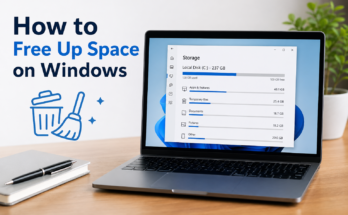
Windows shows the storage drives and how much space is being used. It can also show categories such as Apps, Documents, Pictures, Temporary files, and other types of data.
This is especially useful when my laptop starts showing a low storage warning.
For example, if my laptop has a 512 GB drive but only a small amount of free space remains, I know it is time to remove unnecessary files.
Check Storage Through File Explorer
File Explorer is probably the quickest way to check basic storage information.
I open File Explorer and select This PC from the left side. Under Devices and drives, I can see my storage drives.
Windows displays a bar showing how much space is used and how much is free. I can also see the total capacity of each drive.
If I want more details, I can right click a drive and select Properties. A window will appear showing the used space, free space, and total capacity.
I often use this method because it gives me the information I need within a few seconds.
How to Find Out Whether the Laptop Uses SSD or HDD
Sometimes I also want to know whether my laptop has an SSD or an HDD. This can be useful because SSDs are generally much faster than traditional hard drives.
I can check this through Task Manager. After opening Task Manager, I go to Performance and select the disk listed on the left.
Windows often identifies the drive as an SSD or HDD.
Another way is to search for Defragment and Optimize Drives in Windows. The Optimize Drives window can show the media type of the drive.
Knowing the storage type is useful if I am thinking about upgrading my laptop. If an older laptop has an HDD, replacing it with a compatible SSD can make a noticeable difference in everyday performance.
How to Check Storage Capacity More Carefully
Sometimes the storage shown in File Explorer does not exactly match the number written on the laptop box. For example, a laptop advertised with 512 GB storage may show a lower usable capacity in Windows.
This is normal. Manufacturers calculate storage capacity differently, and Windows also needs space for system files and other data.
To see a detailed breakdown, I use Settings and open System followed by Storage. This allows me to see which categories are taking up the most space.
If I find that temporary files or unused applications are taking a lot of space, I can clean them up carefully.
How to Check RAM and Storage Before Buying a Laptop
I think checking RAM and storage is especially important before buying a laptop. Sometimes a laptop may look attractive because of its design or price, but its specifications may not be suitable for my needs.
For normal browsing, documents, online classes, and everyday work, a laptop with enough RAM and storage can provide a comfortable experience.
If I plan to use demanding software, multitask heavily, edit videos, or work with large projects, I pay more attention to both RAM and storage capacity.
I also check whether the laptop allows RAM or storage upgrades. Some laptops have upgradeable components, while others have parts that are difficult or impossible to replace.
What If My Laptop Has Low RAM?
If I discover that my laptop has limited RAM, I first look at how I use the device.
I close applications that I am not using and reduce the number of unnecessary programs running in the background. I also check Task Manager to see which applications are using a lot of memory.
If the laptop supports a RAM upgrade, adding more memory can be another option. However, I always check the laptop specifications first to make sure the new RAM is compatible.
I would not recommend buying RAM without checking the supported memory type, maximum capacity, and available slots.
What If My Laptop Is Running Out of Storage?
When storage becomes full, I usually start by checking the Storage section in Windows Settings.
I look for large files, unused applications, old downloads, and temporary files. I remove only the files I know I no longer need.
I also check the Downloads folder because it can become surprisingly large over time.
For important photos, videos, documents, and projects, I prefer keeping another backup instead of deleting everything simply to create free space.
An external storage device or a trusted cloud storage service can also be useful for keeping important files.
Why Checking RAM and Storage Is Important
I believe checking RAM and storage from time to time is a simple habit that can prevent many problems.
RAM helps me understand whether my laptop has enough memory for the tasks I perform. Storage tells me whether I have enough room for files, applications, and system updates.
If my laptop becomes slow, checking RAM usage can give me a clue. If I cannot download a large file or install an application, checking storage can quickly show whether space is the problem.
These checks are also useful when buying a used laptop because I can verify whether the specifications match what the seller claims.
Final Thoughts
Checking laptop RAM and storage is much easier than many people think. I do not need to open the laptop or use advanced technical tools for basic information.
For RAM, I can use Windows Settings, Task Manager, or System Information. For storage, File Explorer and Windows Storage settings provide quick and useful information. Task Manager can also help me identify whether my laptop uses an SSD or HDD.
In my opinion, everyone who uses a laptop should know how to check these two specifications. RAM helps me understand the laptop’s multitasking ability, while storage tells me how much space I have for my files and applications.
Once I know how much RAM and storage my laptop has, it becomes easier to understand its performance and decide whether I need to clean up files, change the way I use the laptop, or consider an upgrade. It only takes a few minutes to check, but the information can be very useful for keeping a laptop running smoothly.