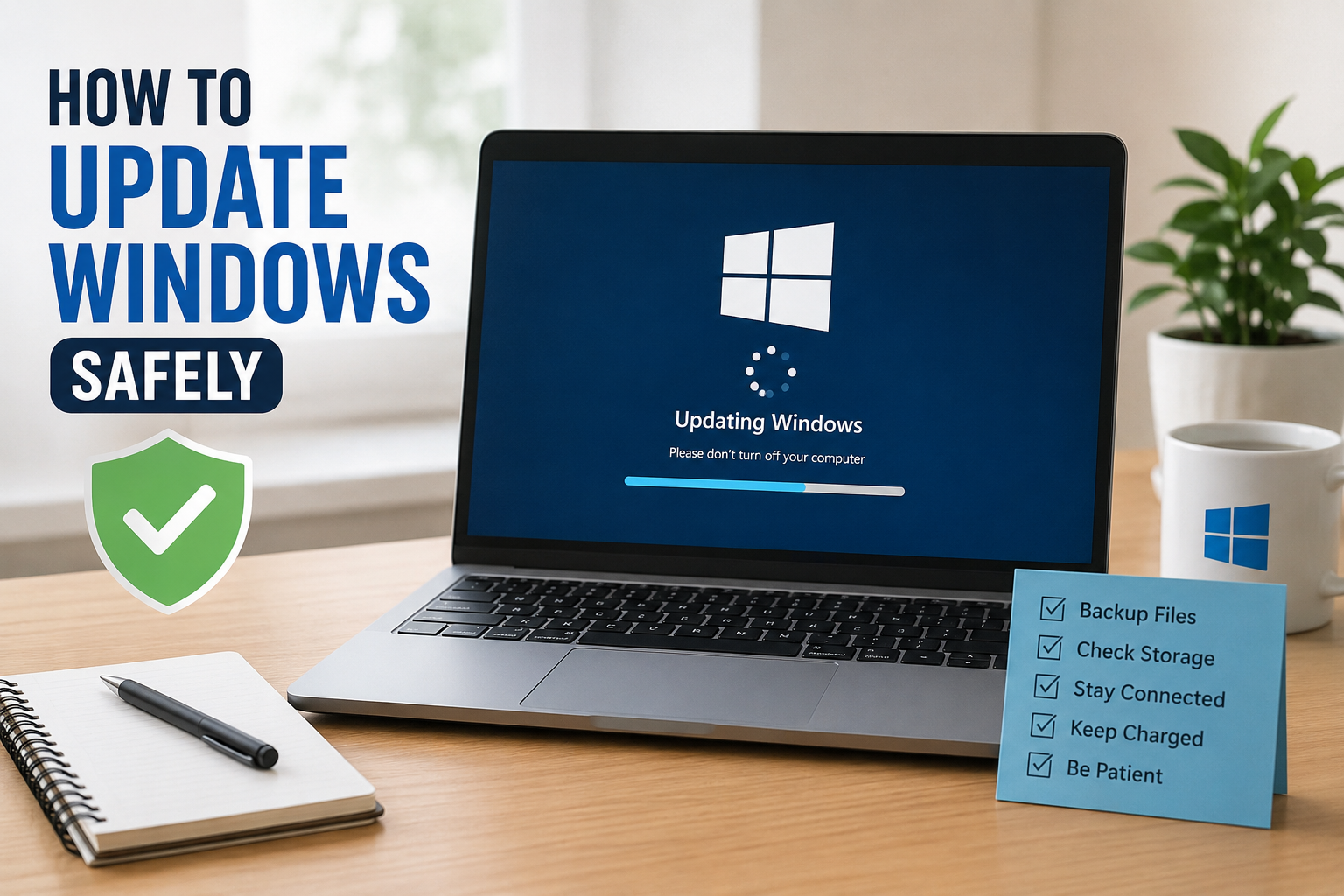
Updating Windows is something I never ignore because I know how important software updates are for the security and performance of a computer. Many people see a Windows update notification and simply click install without thinking about what could happen if the update is interrupted. In my experience, updating Windows is usually simple, but taking a few basic precautions can make the process much safer.
Windows updates can bring security fixes, performance improvements, new features, driver updates, and solutions for bugs. At the same time, an update can sometimes take a long time, require a restart, or create problems if the computer does not have enough storage or power. That is why I prefer to prepare my computer before starting an update.
In this article, I will explain how I update Windows safely and what steps I recommend before, during, and after the update.
Why Windows Updates Are Important
The first thing I keep in mind is that Windows updates are not only about adding new features. One of the biggest reasons to install them is security.
Cyber threats are constantly changing, and security researchers regularly discover weaknesses in operating systems. Microsoft releases updates to fix many of these weaknesses. If I continue using an old version of Windows for a long time, my computer may remain exposed to problems that have already been fixed in newer updates.
Updates can also fix bugs. Sometimes an application crashes, Bluetooth stops working, WiFi behaves strangely, or Windows becomes unstable because of a software problem. An update may contain a solution.
Another benefit is improved compatibility. New applications and hardware are often designed to work with newer versions of Windows. Keeping Windows updated can therefore help everything work together more smoothly.
Check Your Windows Version First
Before updating, I like to know which version of Windows my computer is currently using. This gives me a better idea of what kind of update I might receive.
I can check this by opening Settings and selecting System. From there, I can choose About and look at the Windows specifications. I can also open Windows Settings and go to Windows Update to see the current update status.
Knowing the version is especially useful if I am troubleshooting a problem. If something goes wrong after an update, I already know what version I was using before the change.
Back Up Important Files
One of the most important things I recommend before a major Windows update is backing up important files.
I never want an unexpected problem to cause me to lose personal documents, photographs, school work, projects, or other important data. Although Windows updates are normally designed to preserve personal files, it is still better to be prepared.
For important files, I can use an external storage device or a trusted cloud storage service. I do not necessarily need to back up every single file if I already have reliable backups. I mainly focus on information that would be difficult or impossible to replace.
For me, a backup is like an extra layer of protection. I hope I never need it, but I feel much safer knowing it is available.
Make Sure the Laptop Has Enough Battery
If I am updating a laptop, I always connect the charger before starting the update.
This is a simple step, but it can prevent unnecessary problems. A Windows update can take some time, and the computer may restart several times. If the battery runs out during an important part of the process, it could cause problems.
I prefer to keep the laptop connected to power until the update is completely finished. If I am using a desktop computer, I also avoid updating during situations where the power supply is unreliable.
Check Available Storage
Windows updates require free storage space. If the computer is almost full, the update may fail or Windows may have difficulty completing the installation.
Before updating, I check how much free storage is available. I can open Settings, go to System, and select Storage to see what is using space on my computer.
If storage is low, I remove unnecessary temporary files, old downloads, unused applications, or other files that I no longer need. I am careful not to delete important system files manually.
Having enough free space gives Windows room to download and install the update properly.
Use Windows Update Settings
I always prefer to update Windows through the built in Windows Update feature.
I open Settings and select Windows Update. From there, Windows can check whether updates are available. If an update is ready, I can review the information provided by Windows before starting the installation.
I avoid downloading Windows updates from random websites. There are many websites that claim to offer Windows update files, but downloading system files from an unknown source can create security risks.
Using the official Windows update system is one of the safest approaches because the operating system handles the update process directly.
Choose a Good Time for the Update
I do not start a Windows update when I am in the middle of something important.
For example, if I am working on an assignment, attending an online class, or preparing an important document, I prefer to finish the work first. Windows may need to restart the computer, which can interrupt whatever I am doing.
I usually choose a time when I do not need the computer for a while. This is especially useful for larger updates because they may take longer than expected.
Windows also provides options for scheduling restarts on supported versions. These options can help me choose a more convenient time.
Save Everything Before Restarting
Before allowing Windows to restart, I save my work and close open applications.
This is one of the easiest habits to develop. Even if Windows warns me that a restart is required, I still check my open documents and make sure everything important has been saved.
If I have several browser tabs or programs open, I close them or make sure their information is saved. This reduces the chance of losing unsaved work.
Do Not Turn Off the Computer During an Update
Once the update installation begins, I try not to interfere with the computer.
This means I do not force the computer to shut down just because the update appears to be taking a long time. Some updates can take longer depending on the computer’s hardware, the size of the update, and the number of changes being installed.
The screen may restart several times. That does not automatically mean something is wrong.
If I interrupt the process without a good reason, I could create unnecessary problems. I therefore keep the laptop connected to power and allow Windows to finish.
Keep Internet Connection Stable
Windows needs an internet connection to download many updates. Because of this, I prefer using a stable WiFi or wired connection when updating.
I avoid starting a large update when my internet connection is constantly disconnecting. A weak connection can make downloading take longer or cause the process to pause.
If the download stops, I do not immediately assume the computer has failed. Sometimes Windows simply needs to reconnect or continue the download later.
Update Device Drivers Carefully
Windows updates can also include driver updates, but I do not install random driver software from unknown websites.
Drivers allow Windows to communicate with hardware such as graphics cards, printers, network adapters, keyboards, and other devices.
If a particular device has a problem after a Windows update, I check Windows Update and the official website of the hardware manufacturer for compatible driver information. I avoid using suspicious driver updater programs that promise to fix every driver with one click.
Check Windows After the Update
After the update finishes, I spend a few minutes checking my computer.
I make sure Windows starts normally and check whether my important applications are working. I also test basic things such as WiFi, sound, Bluetooth, and other hardware that I regularly use.
If everything works normally, I can continue using the computer.
If I notice a problem, I first restart the computer again because some updates need an additional restart before everything works properly.
What to Do If Something Goes Wrong
Sometimes an update may create an unexpected problem. If this happens, I try not to panic.
First, I check Windows Update for any additional updates. Microsoft may release another update that fixes a known issue.
I can also use Windows troubleshooting and recovery options when appropriate. If the computer becomes difficult to use after a recent update, Windows provides recovery features that may help return the system to a previous working state.
This is another reason why I believe backups are important. A backup gives me more options if something unexpected happens.
Avoid Fake Windows Update Messages
Another important part of safe updating is recognizing fake update messages.
Sometimes websites display alarming messages claiming that the computer is infected or that Windows must be updated immediately. These messages may try to trick users into downloading suspicious software.
I never trust a random website simply because it shows a Windows looking message. Instead, I open Windows Settings myself and check Windows Update directly.
This small habit can protect me from many unnecessary risks.
Keep Windows Updated Regularly
I believe keeping Windows updated regularly is much easier than ignoring updates for months.
When I regularly check Windows Update, I can install important security fixes without allowing a large number of updates to build up. It also helps me stay familiar with the update process.
I do not install updates blindly, though. For major upgrades, I take a moment to check available storage, save my files, connect the charger, and choose a suitable time.
Final Thoughts
Updating Windows safely does not have to be complicated. In my opinion, the most important thing is simply to avoid rushing the process.
I start by checking my Windows version and available storage. Then I make sure important files are backed up, connect my laptop to power, and use the official Windows Update settings. I choose a suitable time, save my work, and allow the update to finish without interrupting it.
Afterward, I check that Windows and my important hardware are working properly.
Windows updates are an important part of maintaining a computer. They can improve security, fix bugs, improve compatibility, and sometimes introduce useful features. With a few simple precautions, I can keep my computer updated while reducing the chances of losing important work or facing unnecessary problems.
For me, the best approach is simple: prepare first, update through Windows, stay patient during installation, and check everything afterward. This small routine makes Windows updates much safer and less stressful.