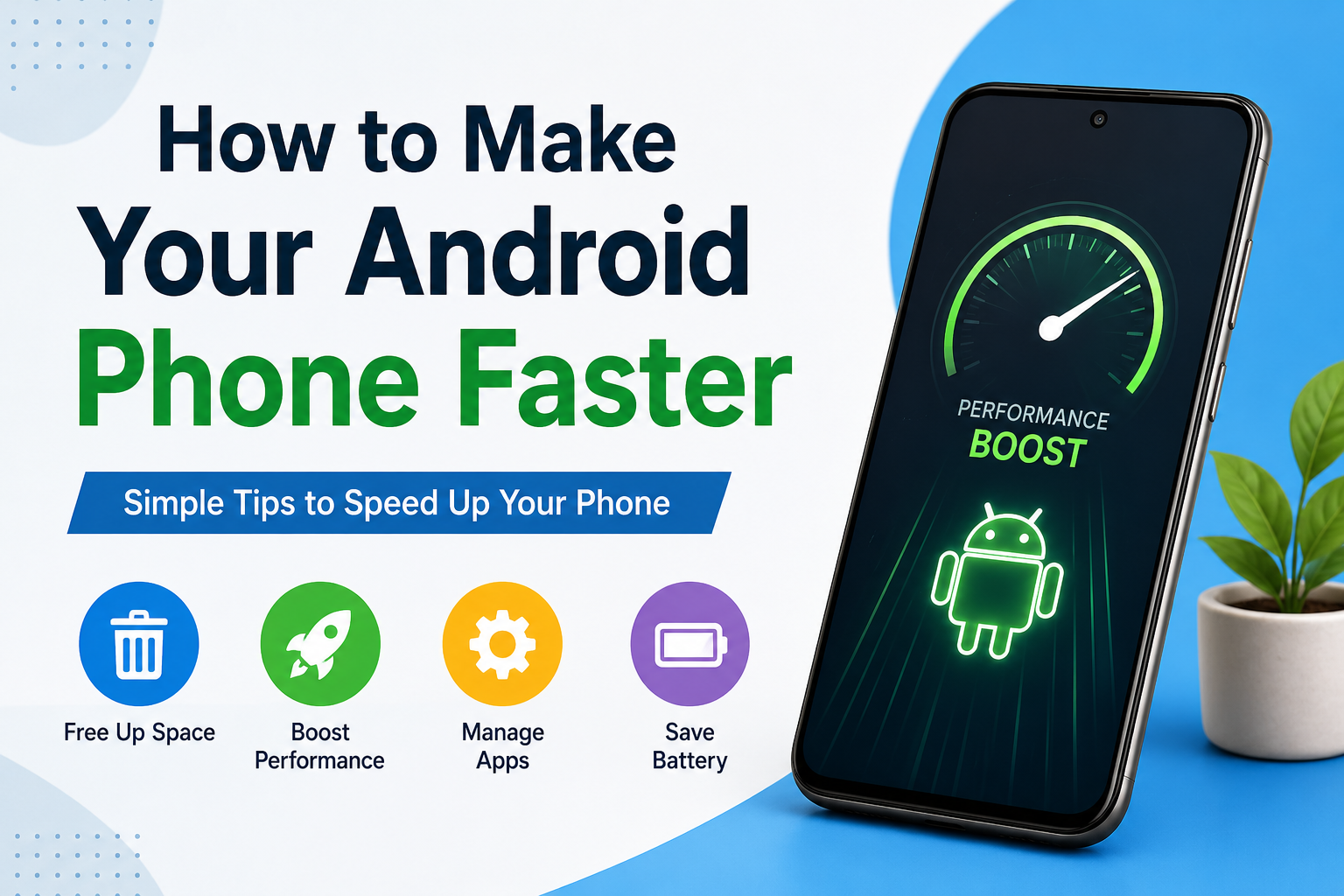
I have noticed that almost every Android phone becomes slower at some point. Sometimes it happens after using the phone for a long time, while in other cases the problem starts because of too many apps, unnecessary files, or limited storage. When a phone becomes slow, opening an app can take longer, scrolling may feel uncomfortable, and even simple tasks can become frustrating.
In my experience, you do not always need to buy a new phone just because your Android device has become slow. There are several simple things you can do to improve its performance. Some of these methods take only a few minutes, while others may require a little more attention.
In this article, I will share the methods I personally consider useful for making an Android phone faster. These tips are suitable for beginners and can be followed without advanced technical knowledge.
Restart Your Android Phone
One of the easiest things I recommend when an Android phone becomes slow is restarting it. Many people ignore this simple step, but it can actually help.
When you use your phone continuously, different apps and background processes remain active. Temporary data can also build up in the system. Restarting the phone closes many of these processes and gives the system a fresh start.
I usually restart my phone when I notice unusual lag, apps taking too long to open, or the device becoming less responsive. It is a simple step, but sometimes it can make a noticeable difference.
Free Up Storage Space
Low storage is one of the common reasons an Android phone may feel slow. When your phone storage becomes almost full, the system has less room to work with temporary files and other processes.
I recommend checking your storage regularly. Open your phone settings and look for the Storage section. You can see how much space is being used by apps, photos, videos, documents, and other files.
If your storage is almost full, start by deleting files you no longer need. Large videos are often responsible for using a lot of space. You can also remove duplicate photos, old downloads, and unnecessary documents.
I personally prefer keeping some free storage available instead of filling the phone completely. This can help the phone remain more comfortable to use.
Remove Apps You Do Not Use
Many people install applications for a specific purpose and then forget about them. Over time, these unused apps can take up storage and sometimes run background processes.
Go through your installed applications and identify the ones you no longer use. If an app has not been useful for a long time, uninstalling it can be a good choice.
I would not recommend removing system applications unless you know exactly what they do. Some built in apps are important for the normal operation of Android.
Removing unnecessary third party apps is a much safer way to reduce clutter.
Keep Android Updated
Software updates can improve the performance, stability, and security of your phone. Manufacturers regularly release updates that fix bugs and improve the overall experience.
Whenever an official Android or manufacturer update is available for my phone, I check what it contains before installing it. If the update is legitimate and compatible with the device, keeping the software current is generally a good idea.
You can usually check for updates through the Software Update section in your phone settings.
However, I also recommend making sure your battery has enough charge and using a stable internet connection before starting a major update.
Update Your Apps
Android system updates are not the only updates that matter. Applications also receive updates from their developers.
An outdated application can sometimes have bugs or compatibility problems. New versions may improve performance and fix problems.
Open the official app store on your phone and check for available updates. You do not necessarily need to update every app immediately, but keeping frequently used applications updated can help avoid certain performance problems.
I also avoid installing applications from unknown websites because unofficial versions can create security and performance problems.
Clear Unnecessary App Cache
Some Android applications store temporary files called cache. These files can help apps load information faster, but over time the cache can become quite large.
If a particular application is behaving strangely or taking too much storage, clearing its cache may help.
You can normally find this option by opening Settings, going to Apps, selecting the application, and looking under Storage. The exact menu can be different depending on the Android version and phone manufacturer.
I recommend choosing the clear cache option rather than clearing app data unless you understand the difference. Clearing app data can remove saved settings or require you to sign in again.
Reduce the Number of Widgets
Widgets can be useful because they provide information directly on the home screen. However, having too many active widgets may increase background activity.
If your home screen is filled with weather, news, social media, clock, news feeds, and other widgets, consider removing the ones you rarely use.
I prefer keeping my home screen simple. A clean home screen not only looks better but can also make the phone feel less cluttered.
Reduce Unnecessary Background Activity
Some applications continue working in the background even when you are not actively using them. Social media, shopping, messaging, and other applications may regularly check for new information.
You can review which apps are using battery and background resources through your phone settings.
If you find an application using an unusual amount of battery or background activity, check its settings. Some Android phones also provide battery optimization options.
I would avoid restricting important messaging or communication apps without understanding the consequences because doing so may delay notifications.
Delete Unnecessary Downloads
The Downloads folder is another place where unnecessary files can accumulate.
I have often found old documents, images, installation files, and other files that I no longer needed. These files may seem small individually, but together they can consume a surprising amount of storage.
Open your file manager and review the Downloads folder. Delete files that you are certain you no longer need.
Before deleting anything, make sure the file is not important or required for future use.
Remove Duplicate Photos and Videos
Photos and videos can quickly consume storage, especially if you use your phone camera frequently.
Sometimes we save the same photo several times or receive identical images through messaging applications. Removing duplicates can free up a significant amount of space.
I recommend reviewing your gallery carefully before deleting anything. If you have important memories, consider keeping a backup using a trusted cloud storage service or another secure storage method.
Once unnecessary media is removed, your phone may have more available storage and feel more responsive.
Use the Lite Version of Apps When Available
Some applications are very demanding because they include many features and constantly use resources.
If an official lightweight version of an application is available for your device and region, it may be worth considering.
Another option is using the mobile website for services that you do not use frequently. You do not need a separate application for every website.
In my opinion, keeping fewer heavy applications installed is one of the simplest ways to reduce unnecessary load on an older Android phone.
Turn Off Unnecessary Animations
Android uses animations to make transitions look smooth. On older or slower devices, reducing these animations can make the interface feel faster.
Some Android phones provide animation settings through Developer Options. The exact names and availability can vary by device.
If you decide to change these settings, be careful not to modify options you do not understand. You only need to adjust animation related settings if you are comfortable doing so.
This does not actually increase the hardware power of your phone. Instead, it can make menus and transitions feel quicker.
Avoid Suspicious Cleaner Apps
When searching for ways to speed up an Android phone, you may see many applications promising dramatic performance improvements.
I personally recommend being careful with these apps. Some cleaner applications may consume additional battery, show advertisements, request unnecessary permissions, or constantly run in the background.
Before installing any performance tool, check who developed it and what permissions it requests. In many cases, Android’s built in storage and battery management features are enough for basic maintenance.
Check for Malware
If your phone suddenly becomes extremely slow, unusual applications or malicious software could be part of the problem.
Think about whether the slowdown started after installing an unfamiliar application. If you notice strange advertisements, unexpected popups, unknown apps, or unusual battery usage, investigate the issue.
Use trusted security tools and remove applications that you do not recognize or trust.
Avoid downloading modified applications from random websites. Saving a few minutes by installing an unofficial app is not worth risking your personal information or device security.
Factory Reset as a Last Option
If you have tried everything and your Android phone is still extremely slow, a factory reset may be an option.
A factory reset removes your personal data, applications, settings, and other information from the phone. Because of this, I consider it a last resort rather than a normal speed improvement method.
Before resetting the device, make sure important photos, contacts, documents, and other files are safely backed up.
After the reset, install only the applications you actually need. Restoring hundreds of old applications immediately can bring the same clutter back.
Final Thoughts
Making an Android phone faster does not always require expensive upgrades or complicated tools. In my experience, simple maintenance can make a big difference.
I would start by restarting the phone, freeing up storage, removing unused applications, updating Android and important apps, and cleaning unnecessary files. After that, I would check background activity and battery usage to find applications that may be putting unnecessary pressure on the device.
I also believe that prevention is better than waiting until the phone becomes extremely slow. Regularly reviewing your apps, files, photos, and storage can keep the device in better condition.
Every Android phone has different hardware and software, so results will not be exactly the same for everyone. An older phone with limited RAM and storage will naturally have limitations. Still, by keeping the device organized and avoiding unnecessary applications and files, you can often make your Android experience smoother and more enjoyable.
For me, the biggest lesson is simple. You do not always need a new phone when the old one becomes slow. Sometimes, it just needs a little cleaning, organization, and proper maintenance.