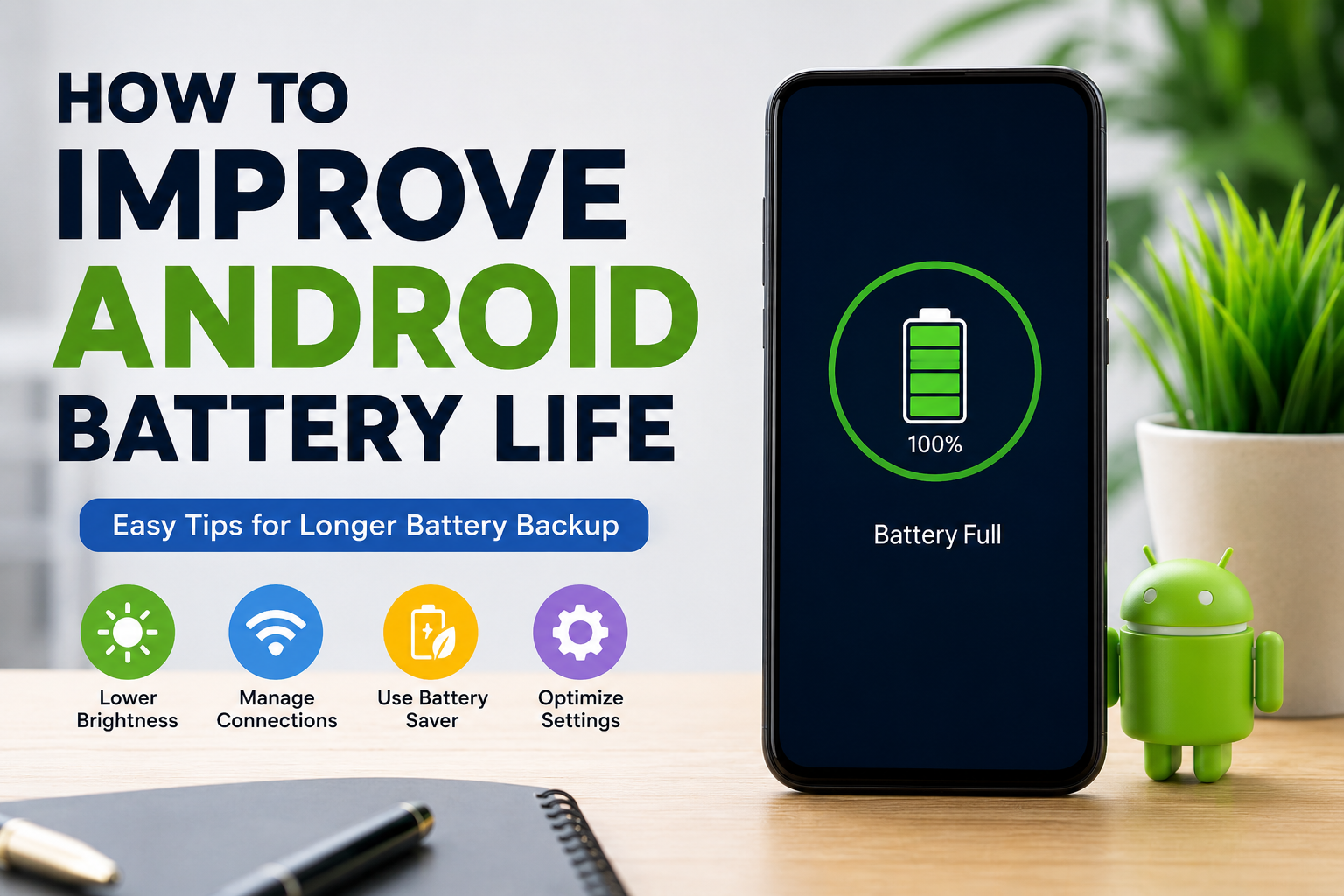
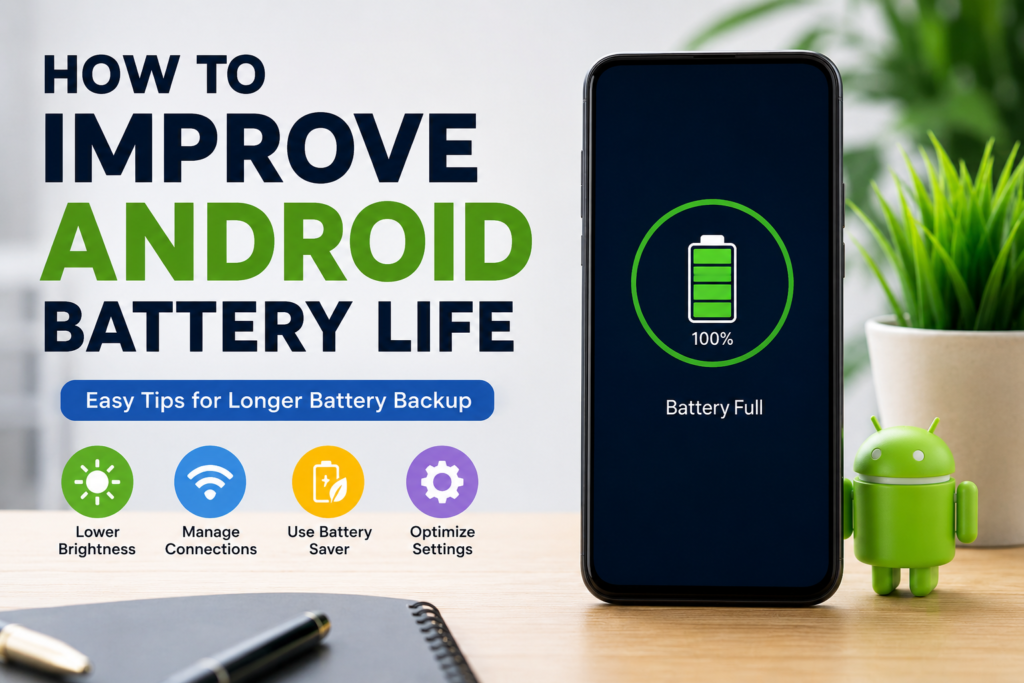
I think one of the most frustrating things about using an Android phone is seeing the battery percentage drop much faster than expected. A phone may start the day with a full charge, but after a few hours of browsing, watching videos, using social media, or making calls, the battery can become surprisingly low. I have faced this problem myself, and over time I have learned that small changes in the way we use our phones can make a noticeable difference.
The good thing is that you do not always need a new battery or a new smartphone to improve battery life. Android provides several useful settings that can help reduce unnecessary battery consumption. In this article, I will share the methods I personally find useful for improving Android battery life and keeping a phone running for longer throughout the day.
Check Which Apps Are Using Your Battery
The first thing I recommend doing is checking battery usage. Sometimes the main reason behind fast battery drain is an app running constantly in the background.
Most Android phones have a Battery section inside Settings. Depending on the phone brand and Android version, the exact location and wording may be different. Look for an option such as Battery Usage or Battery Activity.
Here you can see which apps are consuming the most power. If you notice an app that you rarely use but it is using a large amount of battery, consider restricting its background activity or uninstalling it.
In my opinion, this is one of the easiest ways to find the real cause of battery drain instead of changing random settings.
Reduce Screen Brightness
The display is one of the biggest sources of battery consumption on a smartphone. Keeping the screen at maximum brightness all the time can drain the battery quickly.
I usually keep my screen brightness at a comfortable level instead of using maximum brightness. You can also enable adaptive brightness if your phone supports it. This allows the phone to automatically adjust brightness according to the surrounding light.
When you are indoors, you normally do not need extremely bright screen settings. Reducing brightness even a little can help your battery last longer.
Use Dark Mode
Dark Mode is another setting I personally prefer because it can make the phone more comfortable to use, especially at night.
On phones with OLED or AMOLED displays, dark pixels can use less power than bright pixels. This means Dark Mode may help reduce battery consumption, particularly when using apps that support a dark interface.
You can usually find Dark Mode under Display settings. I recommend trying it for a few days and seeing whether you prefer the experience.
Reduce Screen Timeout
Sometimes the phone screen stays on even when I am not actively using it. If your screen timeout is set to several minutes, this can waste battery throughout the day.
I recommend choosing a shorter screen timeout, such as 30 seconds or one minute. This means your screen will turn off sooner when you stop using the phone.
This may seem like a very small change, but small changes repeated many times during the day can make a difference.
Turn Off Unnecessary Connections
Modern Android phones have several wireless features, including Bluetooth, WiFi, mobile data, GPS, NFC, and hotspot functionality.
These features are useful, but you do not necessarily need all of them active all the time.
For example, if I am not using Bluetooth, I prefer turning it off. The same applies to mobile hotspot and NFC when they are not needed.
WiFi can also be useful for reducing mobile data usage, especially when you are connected to a reliable network. However, if your phone constantly searches for networks while you are moving around, it can sometimes contribute to battery consumption.
The best approach is to keep useful connections active while turning off features you are not using.
Limit Background App Activity
Many apps continue working in the background even when you are not actively using them. Some apps check for updates, synchronize information, refresh content, or send notifications.
For apps that are not important, you can restrict background activity through Android’s battery settings. Be careful with this feature because restricting important apps may delay notifications or affect their normal operation.
I normally focus on apps that I rarely use but still consume noticeable battery power. This gives me better control without affecting the apps I depend on every day.
Turn Off Unnecessary Notifications
Notifications can also contribute to battery usage because every notification may wake the screen, use network activity, or trigger background processes.
I think it is a good idea to review your notification settings and disable notifications from apps that are not important.
For example, if a shopping app constantly sends promotional notifications, you probably do not need all of them. Turning them off can make your phone less distracting while also reducing unnecessary activity.
Use Battery Saver Mode
Android phones usually include a Battery Saver or Power Saving Mode. This is particularly useful when your battery percentage becomes low and you still need your phone to last for several more hours.
Battery Saver can reduce background activity, limit certain features, and make other adjustments to reduce power consumption.
I do not usually keep Battery Saver enabled permanently because I prefer having normal performance when my battery is healthy. However, when I know I will be away from a charger for a long time, I find it very useful.
Keep Your Phone Updated
Software updates are not only about adding new features. They can also include bug fixes, security improvements, and performance optimizations.
If your Android phone has an official system update available, I recommend checking what it includes and installing it when appropriate.
Apps should also be updated regularly. Developers sometimes release updates that fix problems causing excessive battery consumption.
Of course, if your phone is very old, newer software may not always improve performance. Still, keeping supported software reasonably up to date is generally a good practice.
Avoid Extreme Temperatures
Temperature can have a significant effect on smartphone batteries. Very high temperatures can cause battery performance to decrease and may contribute to long term battery degradation.
I try to avoid leaving my phone in direct sunlight or inside a hot car. I also avoid using the phone heavily while it is already extremely hot.
If your phone becomes unusually warm, giving it some time to cool down can be a better choice than continuing intensive tasks.
Be Careful With Gaming and Video Streaming
Gaming, video recording, video streaming, and other demanding activities can consume a lot of battery.
High screen brightness, powerful processors, mobile data, graphics processing, and high refresh rates can all contribute to faster battery drain.
I am not saying you should stop gaming or watching videos. Instead, if battery life is important, you can reduce screen brightness, lower graphics settings in demanding games, and use WiFi when possible.
Some Android phones also allow you to change the screen refresh rate. Using a standard refresh rate instead of a very high refresh rate may help conserve battery, although the exact effect depends on the phone.
Use WiFi When Appropriate
Mobile networks can sometimes require more power than a stable WiFi connection, especially when cellular reception is weak.
When I am at home or somewhere with reliable WiFi, I prefer using WiFi instead of mobile data. This can also help reduce mobile data usage.
However, there is no need to obsess over this. Modern Android phones are designed to manage network connections efficiently. The biggest difference usually happens when the phone has poor signal and constantly searches for a stronger connection.
Remove Apps You Do Not Need
Over time, it is easy to install dozens of apps and forget about them. Some of these apps may continue running background services or sending notifications.
I recommend checking your app list every few months. If there is an application you have not used for a long time, consider uninstalling it.
This can free storage space, reduce background activity, and make your phone feel cleaner.
Check Battery Health
If you have tried everything and your phone still loses battery extremely quickly, the battery itself may be aging.
Lithium ion batteries naturally lose capacity as they go through charging cycles. An older phone may simply not be able to hold the same amount of charge it could when it was new.
Some Android manufacturers provide battery health information in their settings. If your phone supports this feature, check it to understand the condition of the battery.
If the battery has significantly degraded, replacing the battery through a reliable repair service may be more useful than constantly changing settings.
Avoid Unnecessary Battery Saving Apps
I personally do not recommend installing random battery saver or phone cleaning applications just because they promise dramatic improvements.
Some of these apps may run constantly in the background, display advertisements, or consume additional resources. Android already includes built in tools for managing battery usage.
Instead of depending on a third party application, I prefer using the battery settings already provided by Android and the phone manufacturer.
My Simple Battery Saving Routine
If I want my Android phone to last longer during a busy day, I keep things simple. I use moderate screen brightness, enable Dark Mode when suitable, close or restrict unnecessary background activity, and turn off connections I am not using.
I also avoid keeping demanding applications open unnecessarily. When the battery becomes low, I activate Battery Saver and reduce activities such as gaming and video streaming.
These habits do not require much effort, and after using them regularly, battery management becomes almost automatic.
Final Thoughts
Improving Android battery life does not always require complicated solutions. In my experience, the biggest improvements come from understanding what is actually using the battery and then making a few sensible changes.
Start by checking battery usage, reducing screen brightness, using Dark Mode, shortening screen timeout, controlling background activity, and removing unnecessary apps. You should also pay attention to phone temperature and battery health because hardware condition can eventually become more important than software settings.
Every Android phone is slightly different, so some methods may work better on one device than another. My advice is to make changes gradually and observe your battery performance for a few days.
A smartphone battery will naturally lose capacity over time, but good usage habits can help you get more useful hours from your phone and potentially keep the battery in better condition for longer. For me, the goal is not to disable every useful feature just to save a few percent. The goal is to find a comfortable balance between battery life, performance, and the features I actually use every day.