I personally believe that backing up an Android phone is one of those things that most people ignore until something goes wrong. We keep so many important things on our phones today, including photos, videos, contacts, messages, documents, passwords, and app data. Losing all of this information because of a broken phone, accidental deletion, theft, or a software problem can be extremely frustrating.
The good thing is that backing up an Android phone is not as difficult as many people think. Android provides several useful backup options, and you can also use cloud storage or a computer to keep another copy of your important files.
In this article, I will explain how I recommend backing up an Android phone and what you should consider before relying on a single backup method.
Why Should You Back Up Your Android Phone?
Before discussing the actual steps, I think it is important to understand why phone backups matter.
Imagine taking hundreds of family photos over several years and suddenly losing your phone. If those photos were stored only on your device, recovering them might be difficult or even impossible.
The same problem can happen with contacts, important documents, messages, and other personal information. Phones can be damaged by water, dropped accidentally, stolen, or affected by software problems.
A backup gives you an extra copy of your information. If something happens to your phone, you can restore your data to another device instead of starting from zero.
For me, the biggest benefit of having a backup is peace of mind. I do not have to worry as much about losing important files because I know another copy exists somewhere safe.
Use Google Backup on Android
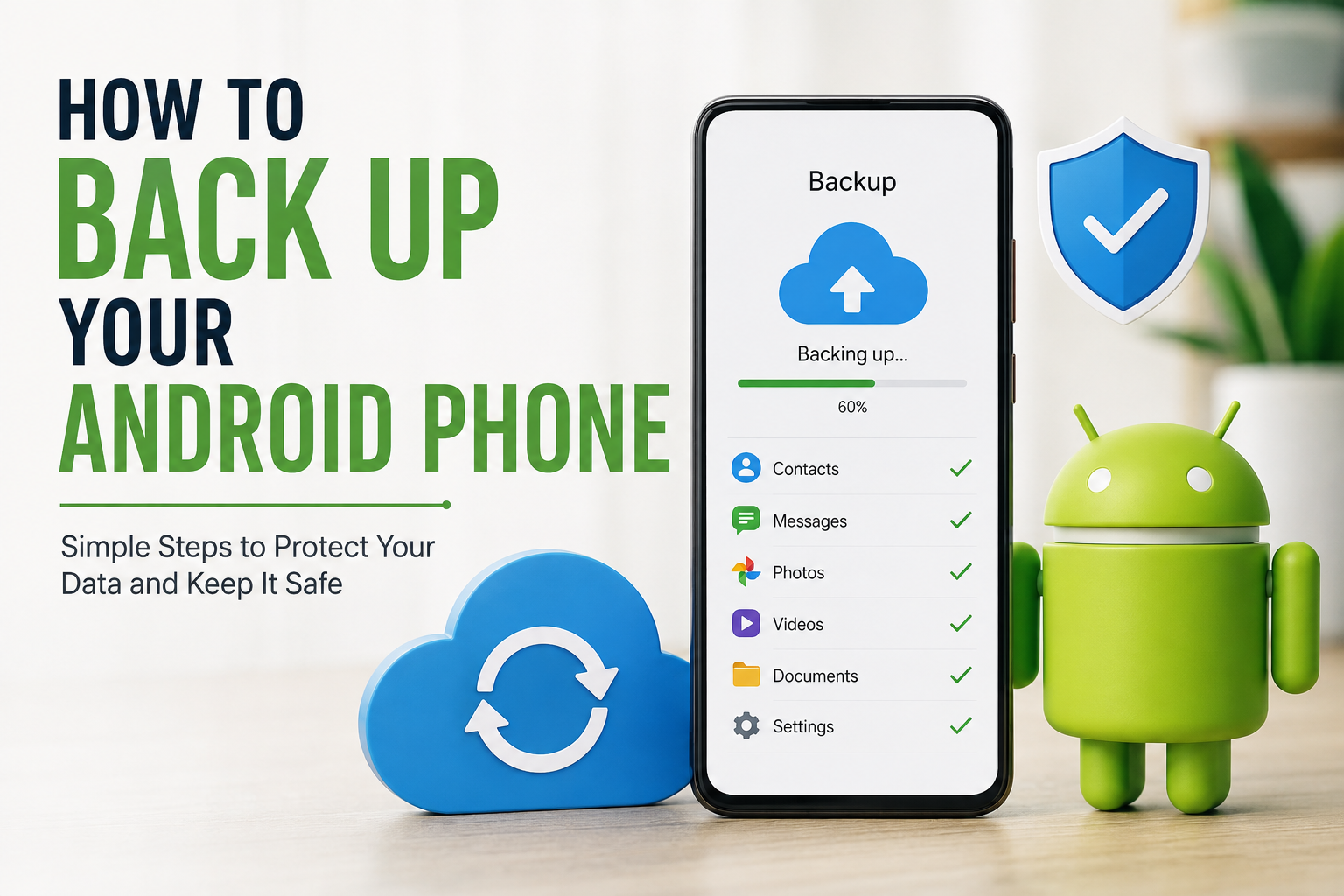
One of the easiest ways to back up an Android phone is by using the Google backup feature. Most Android phones already have access to Google services, so you may not need to install another application.
Google backup can save certain information associated with your phone and Google account. Depending on your Android version and device manufacturer, this may include app data, contacts, device settings, call history, and SMS messages.
To check your backup settings, open the Settings app on your Android phone.
Look for an option such as Google, System, or Backup. The exact location can be different depending on your phone brand and Android version.
Once you find the backup section, check whether backup is enabled. You may see information about the account being used for backup and when the most recent backup was completed.
I recommend checking this page occasionally instead of simply assuming everything is being backed up automatically.
Back Up Your Photos and Videos
Photos and videos are often the most valuable files stored on a phone. They can also consume a huge amount of storage space.
Google Photos is a convenient option for backing up photos and videos. If you use Google Photos, open the app and sign in with your Google account.
Go to your profile picture and look for the backup settings. If backup is turned off, you can enable it and choose the appropriate upload quality and settings.
I personally recommend checking the backup status after enabling this feature. Sometimes people assume that every photo has already been uploaded, but the process may still be running.
If you have thousands of photos, the first backup can take some time, especially if your internet connection is slow.
It is also a good idea to open Google Photos from another device or a web browser occasionally to make sure your important photos are actually available there.
Back Up Your Contacts
Contacts are another type of information that I think everyone should protect.
If your contacts are saved only on your phone or SIM card, losing the device could mean losing important phone numbers.
The safest approach is to sync your contacts with your Google account when possible.
Open the Contacts app and check where your contacts are being saved. If you see that many contacts are stored only on the device, consider moving or syncing them with your Google account.
Once your contacts are synchronized, you can usually access them again when you sign in to the same Google account on another compatible device.
This can save a lot of time when switching to a new phone.
Back Up WhatsApp Data
For many Android users, WhatsApp contains years of important conversations, photos, videos, voice messages, and documents.
If you use WhatsApp regularly, I strongly recommend checking its backup settings separately.
Open WhatsApp and go to Settings. Then look for Chats and Chat backup.
Depending on your account and current WhatsApp version, you can configure backups to your Google account. You can also choose how frequently backups should be created.
Before changing phones, I recommend creating a fresh backup and confirming that it has completed successfully.
There is an important point here. A WhatsApp backup is different from a general Android backup, so I would not assume that your normal phone backup automatically protects everything inside WhatsApp.
Back Up Important Documents
Many people remember to back up photos but forget about documents.
Your Downloads folder may contain PDFs, Word files, school assignments, receipts, scanned documents, and other important information.
I recommend reviewing your file manager and checking folders such as Downloads, Documents, Pictures, and other folders where you regularly save files.
You can upload important documents to a trusted cloud storage service or copy them to your computer.
For extremely important documents, I prefer having more than one copy. For example, I might keep one copy in cloud storage and another copy on my computer.
This approach reduces the risk of losing everything if one storage location fails.
Back Up Your Android Phone to a Computer
Cloud backups are convenient, but I think keeping a local copy on a computer is also a smart idea.
Connect your Android phone to your computer using a suitable USB cable. Your phone may display a notification asking how you want to use the USB connection.
Choose the option that allows file transfer if necessary.
Your phone should then appear on your computer as a storage device. You can open it and copy important folders and files to your computer.
I usually recommend focusing on personal files such as photos, videos, documents, music, and downloaded files.
After copying everything, open a few files on the computer to make sure the transfer was successful.
Simply copying files and never checking them can create a false sense of security.
Use an External Storage Device
If you have a large amount of data, you can also consider using an external storage device.
You can copy important files from your Android phone to a computer and then keep another copy on an external hard drive or USB storage device.
This can be especially useful if you have years of photos and videos.
The main advantage is that the files do not depend entirely on your phone or one online account.
However, I would still keep the external storage device somewhere safe. If the phone and backup drive are kept in the same place, a physical incident could potentially affect both.
Check Your Backup Regularly
One mistake I see people make is creating a backup once and then forgetting about it.
A backup is most useful when it is kept up to date.
I recommend checking your Android backup settings from time to time. Look at the last backup date and make sure it is reasonably recent.
You should also check your photo backup and important cloud files.
If you change your Google account, switch phones, or change backup settings, take a few minutes to confirm that your important information is still protected.
Regular checking takes very little time but can prevent a major problem later.
Do Not Rely on Only One Backup
In my opinion, one of the best backup habits is keeping multiple copies of important information.
For example, your photos could be backed up to Google Photos and also copied to your computer.
Important documents could be stored in cloud storage and on an external drive.
This gives you more protection if one backup becomes unavailable.
Of course, you do not need to make multiple copies of every unimportant file. Focus on information that would be difficult or impossible to replace.
What About App Data?
Android can back up certain app data, but the exact information that can be restored depends on the app and Android version.
Some apps store information online through your account, while others may keep information locally.
Before deleting an app or resetting your phone, check whether the app has its own backup or synchronization feature.
This is particularly important for messaging apps, note taking applications, authentication apps, and other services that may contain information you cannot easily recreate.
Before Resetting or Selling Your Phone
If you are planning to sell, give away, or factory reset your Android phone, create a fresh backup first.
Go through your photos, contacts, documents, messages, and other important information.
Make sure your files are accessible from your backup location before deleting anything from the phone.
I personally think it is better to spend an extra thirty minutes checking everything than to realize later that an important file was never backed up.
After confirming that your information is safe, you can proceed with the reset or device transfer.
Final Thoughts
Backing up your Android phone does not have to be complicated. The most important thing is to make it a regular habit instead of something you think about only after losing data.
I recommend starting with the built in Android backup options and making sure your Google account is configured correctly. Then protect your photos and videos, check your contacts, create backups for important messaging apps, and copy important documents to another location.
For extra protection, keep a local copy of your most valuable files on a computer or external storage device.
The goal is simple. If your phone suddenly stops working tomorrow, you should be able to get your important information back without panic.
A phone can be replaced, but some of the information stored inside it cannot. That is why I believe spending a little time on regular backups is one of the smartest habits any Android user can develop.