If you have been using an Android phone for a long time, you have probably seen the annoying message that says your storage is almost full. I have faced this problem myself, and I know how frustrating it can be. A phone with low storage can become slow, apps may stop working properly, and you may not even be able to take new photos or install important updates.
The good thing is that freeing up storage on Android is usually not difficult. In my experience, most of the storage is taken by photos, videos, downloaded files, apps, and temporary data. Once you know where your storage is going, you can remove unnecessary files without deleting things that are important to you.
In this article, I will share the methods I personally find useful for freeing up storage on an Android phone.
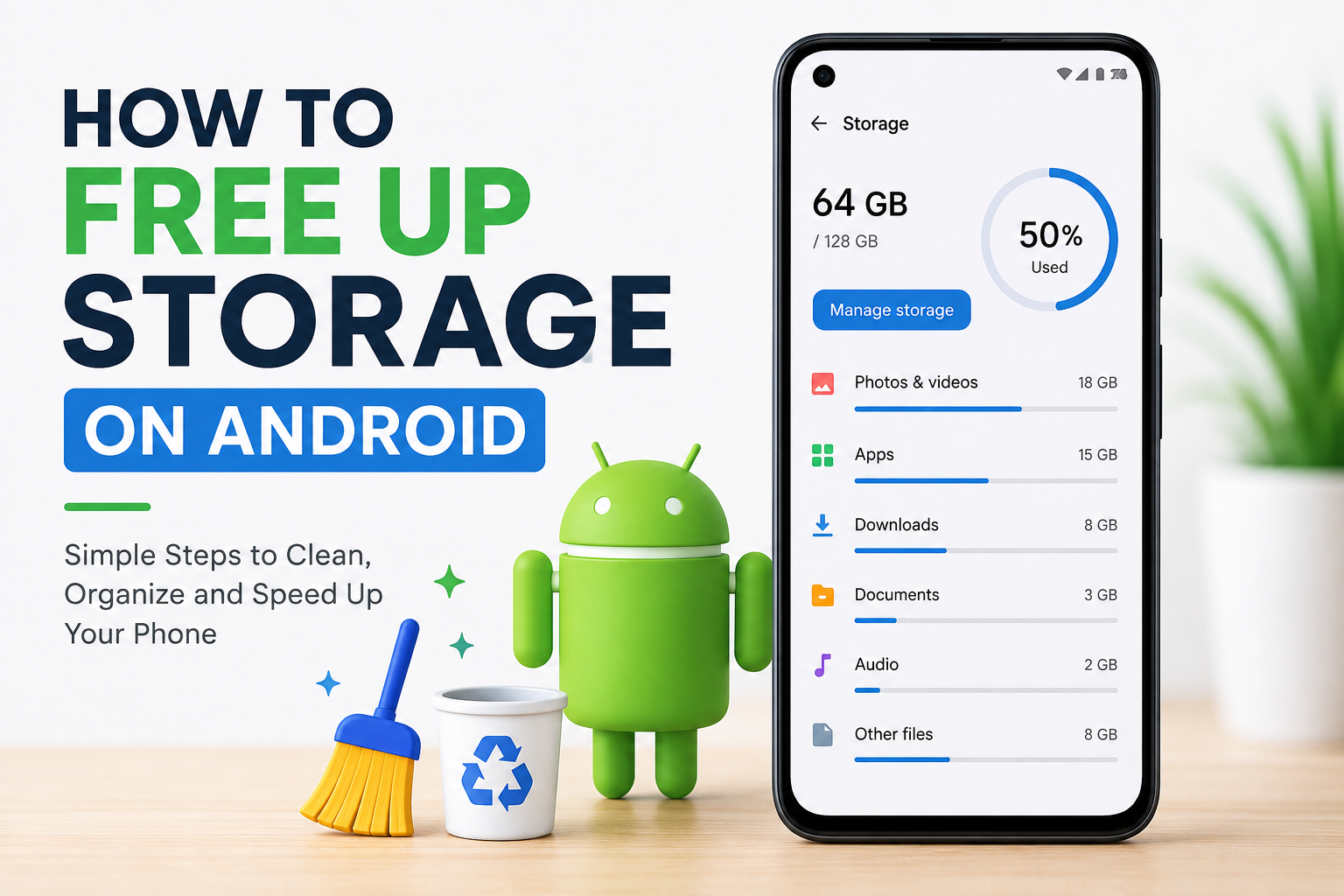
Check What Is Using Your Storage
Before deleting anything, I recommend checking your phone’s storage. This helps you understand what is actually taking up space.
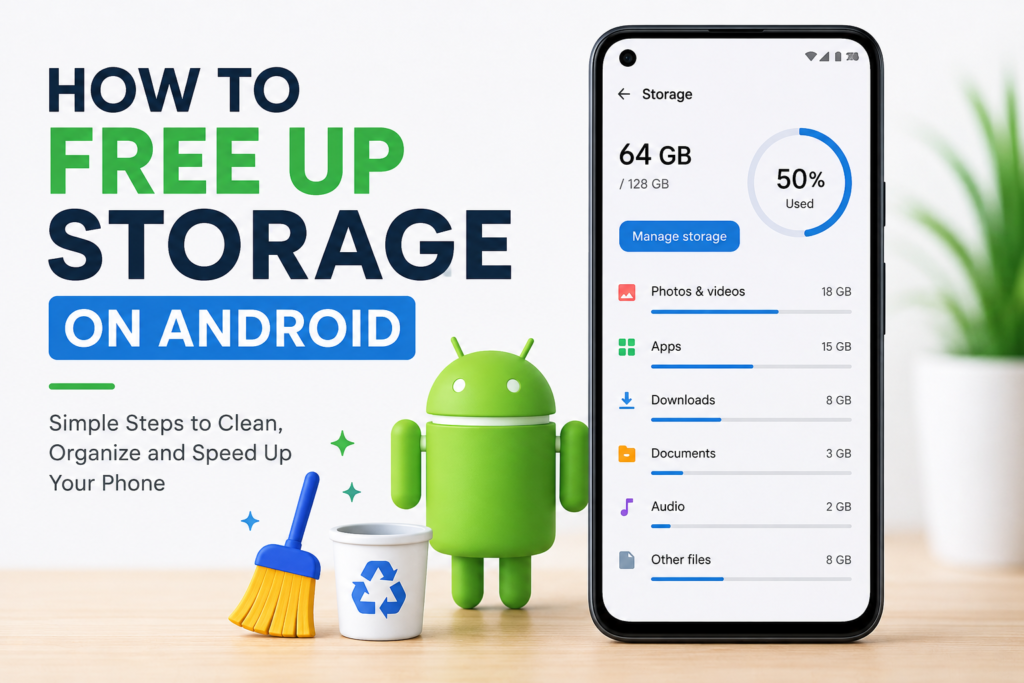
Open the Settings app on your Android phone and look for Storage. The exact name can be slightly different depending on your phone brand and Android version.
You will normally see categories such as Apps, Photos, Videos, Documents, Audio, Downloads, and System. This gives you a clear idea of where most of your storage is being used.
I always recommend checking this first because randomly deleting files can sometimes create more problems. If videos are using most of your storage, focus on videos. If apps are taking too much space, review your installed apps.
Delete Unnecessary Photos and Videos
Photos and videos are usually among the biggest storage users on an Android phone. Modern phones can take high quality photos and record high resolution videos, which means a single file can take a lot of space.
I personally check my gallery regularly and remove pictures that I no longer need. For example, screenshots, duplicate photos, blurry pictures, old memes, and random images from social media can quickly fill your storage.
Videos deserve even more attention because they are usually much larger than photos. If you have old videos that you do not watch anymore, deleting them can immediately free up a significant amount of space.
Before deleting important memories, make sure you have a backup if you want to keep them.
Clean Your Downloads Folder
The Downloads folder is another place that people often forget about. Over time, it can become full of PDFs, images, videos, documents, APK files, and other files that were downloaded for temporary use.
I recommend opening your file manager and checking the Downloads folder. Look through the files and remove anything you no longer need.
For example, if you downloaded a document months ago and already have another copy saved somewhere, there may be no reason to keep it on your phone.
Be careful with important documents. Do not delete files unless you know what they are and you are sure you no longer need them.
Uninstall Apps You Do Not Use
Apps can consume a surprising amount of storage. Some applications are very large when you include their downloaded data and updates.
I like to check my installed apps every few months. If I find an app that I have not opened for a long time, I consider uninstalling it.
Think about the games you installed once and never played again, shopping apps you rarely use, editing apps you tested once, or other applications that are simply sitting on your phone.
Removing unused apps not only gives you more storage but can also make your phone easier to manage.
If you need an app again later, you can usually reinstall it from the Play Store.
Clear App Cache
Android apps often store temporary files called cache. These files can help apps load information faster, but some apps can build up a large amount of cached data over time.
You can check an app’s storage information through Settings and Apps. From there, you may see an option to clear its cache.
I recommend clearing cache when an individual app is using an unusually large amount of temporary storage.
However, I would not recommend constantly clearing the cache of every app. Cache is normally there for a reason, and Android manages temporary files automatically in many situations.
Also, be careful not to select Clear Storage or Clear Data unless you understand what it does. Clearing an app’s data can remove its saved information and may require you to sign in again.
Remove Old WhatsApp and Messenger Media
Messaging apps can quietly consume a huge amount of storage. If you use WhatsApp, Messenger, Telegram, or similar apps frequently, your phone may contain thousands of photos, videos, voice messages, and documents.
I recommend checking the storage management options inside your messaging apps. WhatsApp, for example, provides tools that help you identify large files and files that have been forwarded many times.
Instead of deleting everything, I usually focus on large videos and unnecessary media. This allows me to free up space without losing important conversations.
You can also review group chats because some groups may automatically receive a large number of images and videos.
Delete Old Screenshots
Screenshots may seem small, but having hundreds or thousands of them can use a noticeable amount of storage.
I often take screenshots for temporary purposes, such as saving an order number, an online conversation, a product, or information from a website. After I no longer need them, I delete them.
Open your Gallery or Photos app and look for the Screenshots folder. Go through the images and remove the ones that are no longer useful.
This is one of the easiest ways to clean up storage without touching important personal photos.
Use Cloud Storage
If you have many important photos and videos, cloud storage can be a useful solution. Instead of keeping every file stored locally on your phone, you can back up your important media and then remove local copies when appropriate.
Services such as Google Photos can help you back up photos and videos. Once you confirm that your important files are safely backed up, you can use the available storage management options to remove backed up items from your device.
I always recommend checking that your files are actually backed up before deleting local copies. Do not assume that a file is safe just because you opened a cloud storage app.
Remove Duplicate Files
Duplicate files are another common reason Android storage becomes full.
Sometimes you may download the same picture more than once or receive the same video through different conversations. You may also have duplicate documents saved in different folders.
Some Android phones include built in storage management tools that can help identify unnecessary or duplicate files. You can also use a trusted file management application if your phone does not provide this feature.
Before deleting duplicates, check the files carefully. Similar looking files are not always identical.
Delete Offline Downloads
Many apps allow you to download content for offline use. This is useful when you do not have an internet connection, but these downloads can take a lot of storage.
For example, music, movies, podcasts, maps, and videos can all be stored offline.
I recommend checking the offline content inside the apps you use. If you downloaded something months ago and no longer need it, remove the offline copy.
This can free up a large amount of space without uninstalling the application itself.
Empty the Trash or Recently Deleted Folder
One thing that is easy to forget is the Trash or Recently Deleted folder.
When you delete photos or videos, they may not disappear permanently right away. Instead, they can remain in a trash folder for a certain period.
If your phone is seriously low on storage, check your Gallery or Photos app and look for Recently Deleted or Trash.
Before emptying it, make sure there is nothing important inside. Once you permanently delete these files, recovering them may be difficult or impossible.
Move Large Files to a Computer
If you do not want to delete your files, another option is to move them to a computer or external storage device.
For example, if you have years of family videos stored on your phone, you can transfer them to your computer and then remove the phone copies after confirming that the transfer was successful.
I find this especially useful for large videos because they can consume several gigabytes of storage.
You can organize the files on your computer into folders so they are easier to find later.
Avoid Random Cleaning Apps
When Android storage becomes full, you may see many applications promising to clean your phone with one tap. I personally recommend being careful with these apps.
Some cleaning applications may provide useful features, but others can show excessive advertisements, request unnecessary permissions, or encourage you to delete files without understanding what they are.
Before installing a cleaning app, check who developed it and what permissions it requests.
In many cases, the storage tools already included with your Android phone are enough for basic cleaning.
Restart Your Phone After Cleaning
After removing a large number of files, I usually restart the phone. This is not a magic storage solution, but restarting can help Android refresh its system and close background processes.
If your phone was behaving slowly because storage was almost completely full, you may notice better performance after freeing enough space and restarting.
Keep Some Free Space Available
One mistake I try to avoid is filling my phone completely. Android needs some free storage for temporary files, app updates, system operations, and other tasks.
If your storage is constantly at 99 or 100 percent, your phone may not work as smoothly as it should.
I recommend keeping a reasonable amount of free space available. You do not need to wait until Android gives you a storage warning. Regularly cleaning old files can prevent the problem from becoming serious.
Final Thoughts
Freeing up storage on Android does not have to mean deleting everything from your phone. In my experience, the best approach is to first understand what is using your storage and then clean it step by step.
I usually start with large videos, unnecessary photos, old downloads, unused apps, messaging media, screenshots, and offline content. I also check the Trash folder and remove duplicate files when necessary.
The most important thing is to be careful with personal files. Before deleting important photos, videos, documents, or other data, make sure you have a backup if you want to keep them.
A little storage maintenance every few weeks or months can make a big difference. Instead of waiting until your phone becomes completely full, make storage cleanup a simple part of your regular phone maintenance. This way, you can keep your Android phone organized, have enough space for new files, and avoid many of the problems that come with running out of storage.